
# How to Get API Key
The API Key is the credential you use to call Get Access Token. It is created on the API page of your CJ account: https://www.cjdropshipping.com/my.html#/authorize/API (opens new window).
Already installed the API app but can't find your API Key? Installing the app does not create a key by itself. Open the API page (opens new window) and follow Step 2 to Step 4 below to add an API Key and copy it.
# Steps
Step 1: If you haven't installed the API app under Apps yet, you need to install it first before you can get an API Key. Click Apps in the left navigation, expand it, then click Install App to open the App Store.
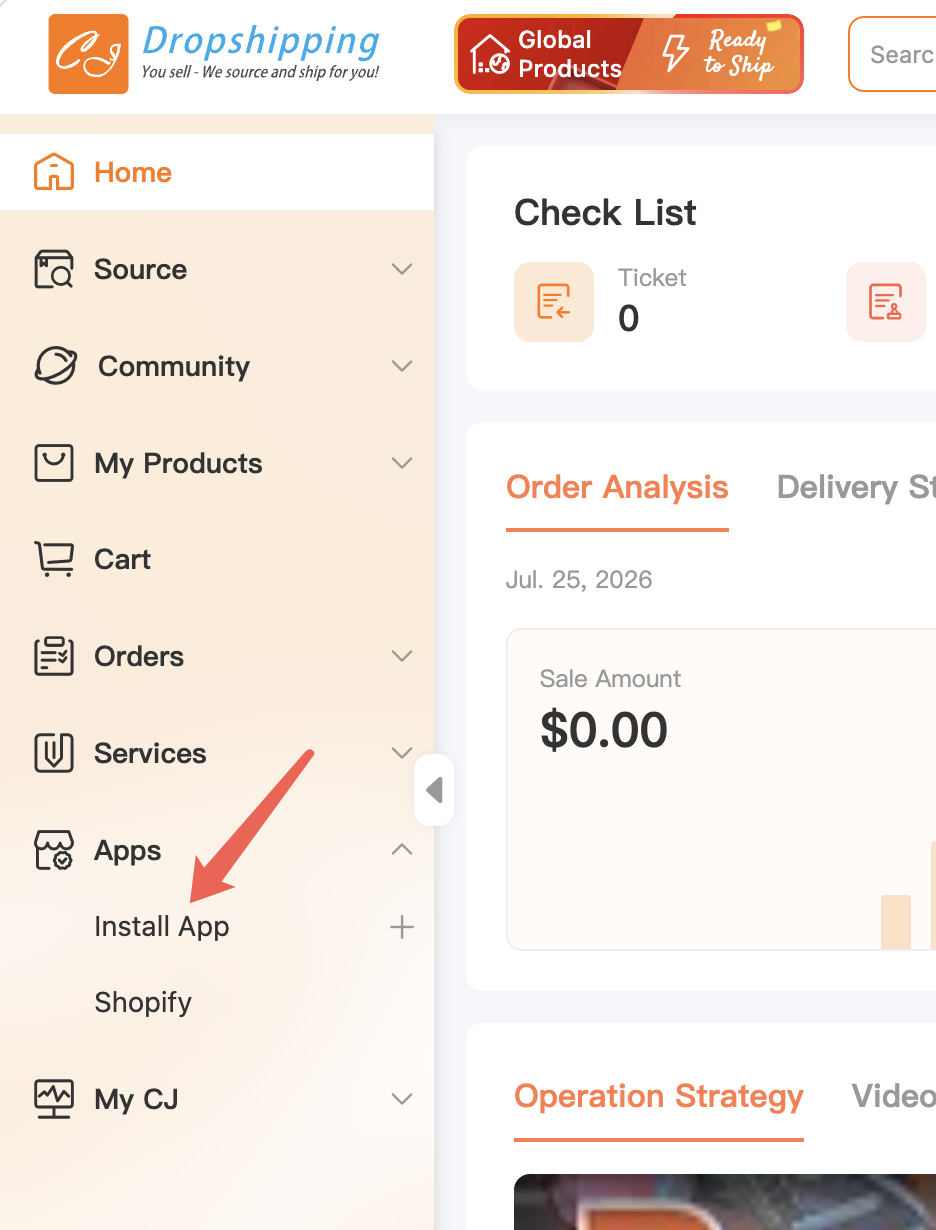
Figure 1: Expand the Apps menu in the left navigation and click Install App to open the App Store.
In the App Store, under the Others category, find API and click the icon on its right to install it. Once installed, a toast reading "Installed Successfully" appears in the top-right corner, and the icon on the API card turns into a green check mark. If it's already installed (icon already shows a green check mark), you can skip this step.
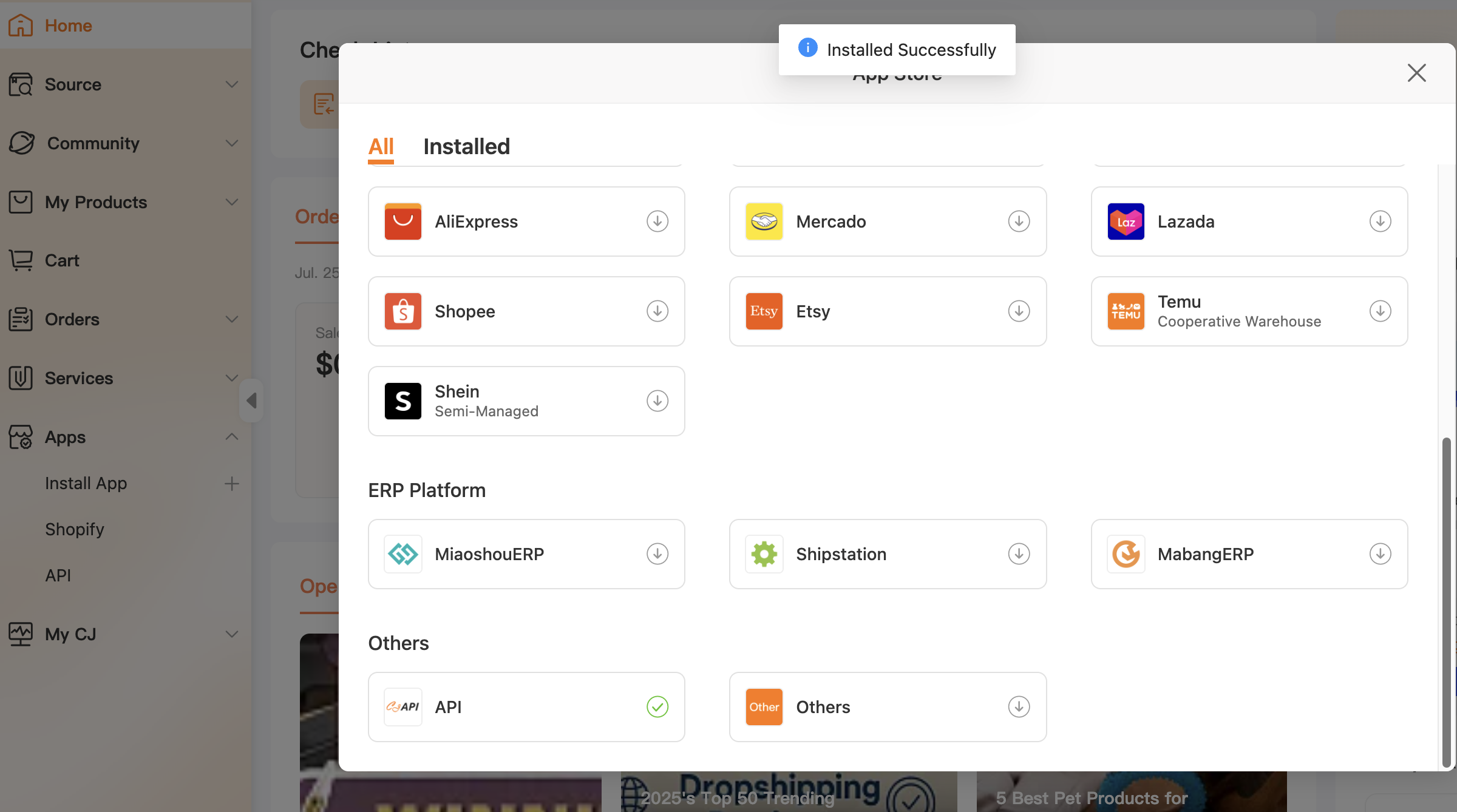
Figure 2: The API app under the Others category in the App Store has finished installing — a "Installed Successfully" toast appears in the top-right corner, and the API card shows a green check mark on the right.
Step 2: Go to Get API Key (opens new window). On the API tab, click the Add API button.
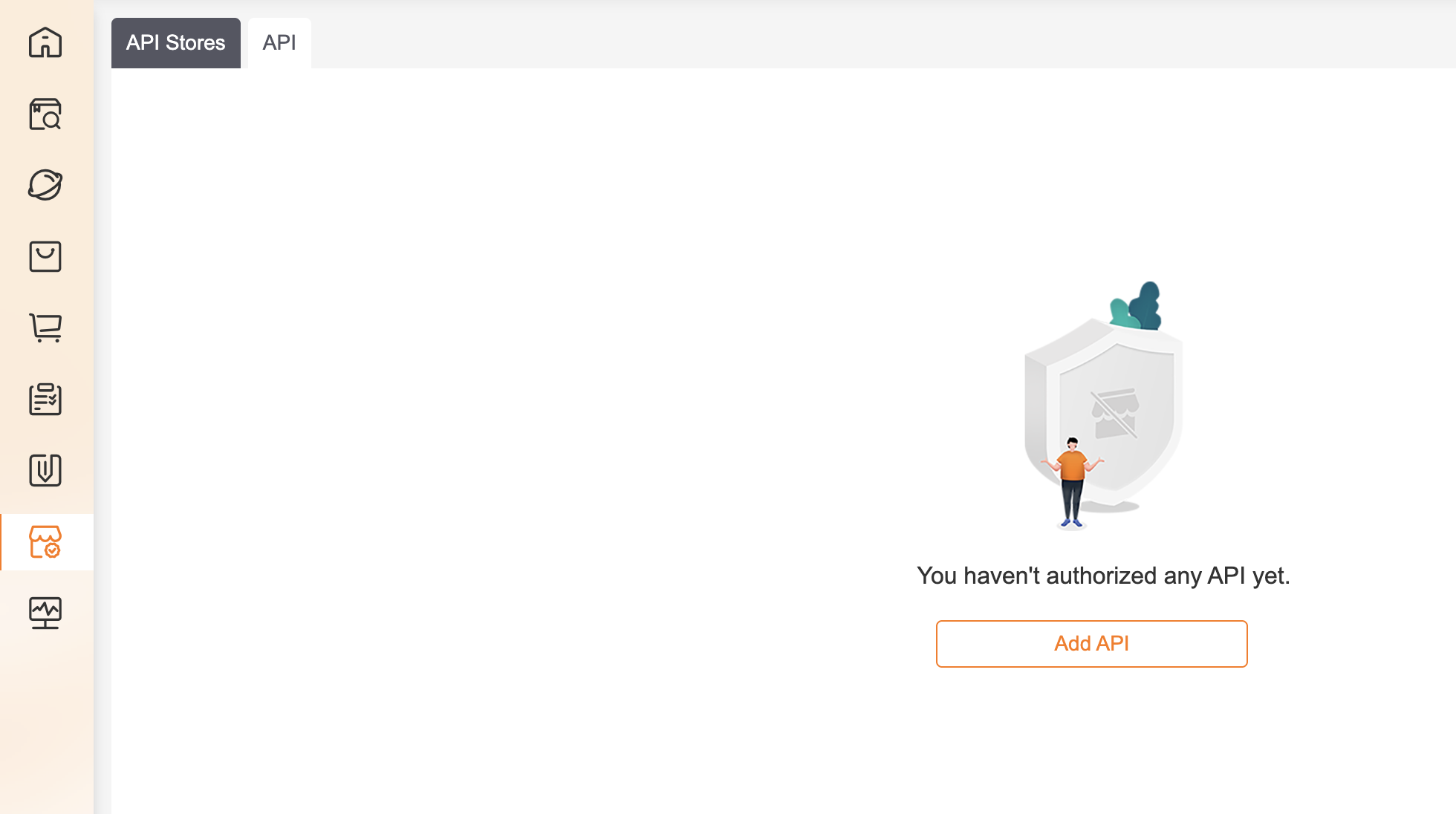
Figure 3: In the CJ personal center, open the API tab. When no API has been authorized yet, the page shows the empty state "You haven't authorized any API yet." with an orange Add API button. Click Add API to start.
Step 3: In the Add API dialog, enter the API Key Name, select API Key in the Type dropdown, then click Confirm.
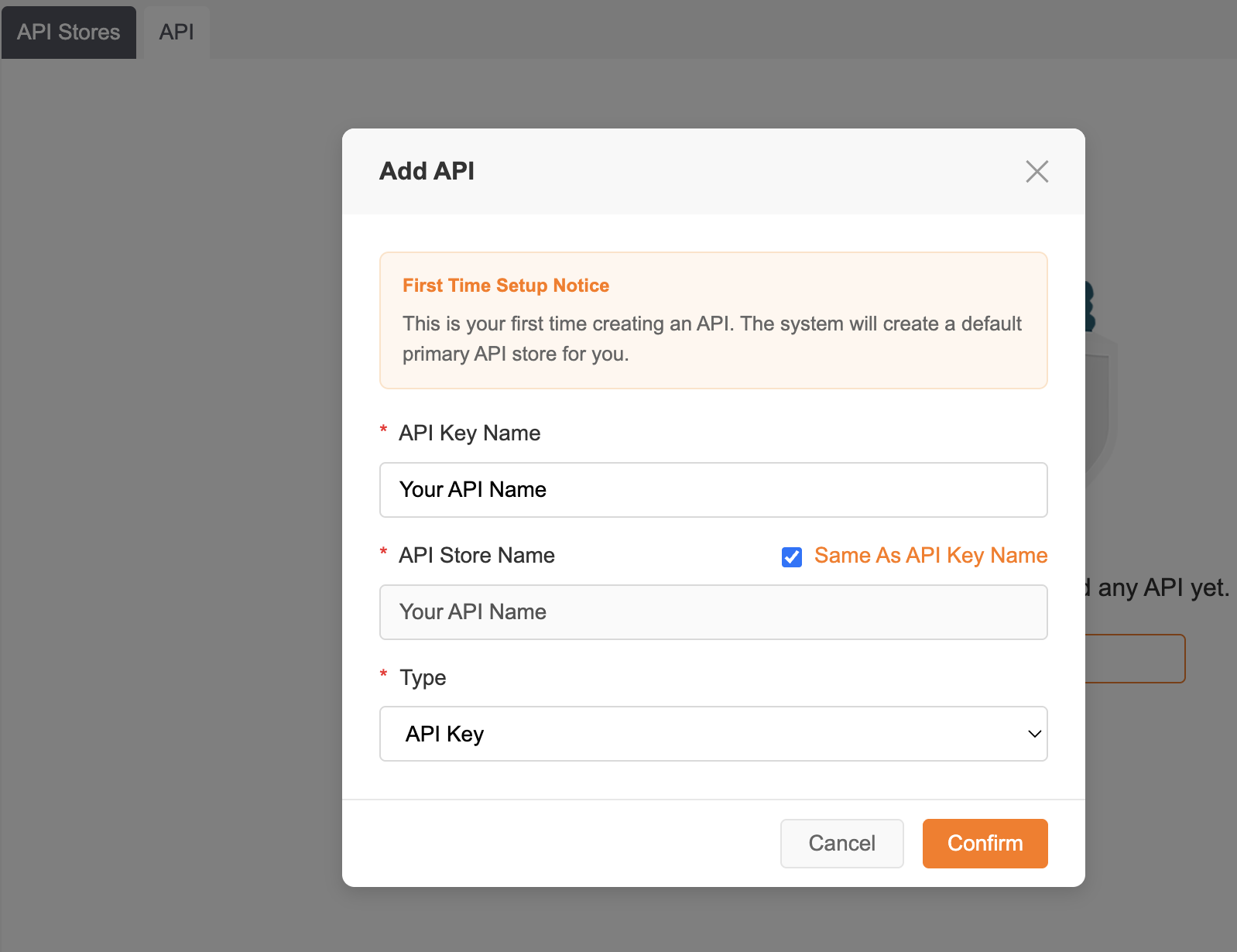
Figure 4: The Add API dialog. Required fields: API Key Name (e.g. "Your API Name"), API Store Name (checkbox "Same As API Key Name" is checked by default) and Type. Set Type to API Key, then click the orange Confirm button (or Cancel to abort).
Step 4: In the API list, find the record whose Type is API Key, then click the Copy icon in the API Key & MCP Token column to copy your API Key.
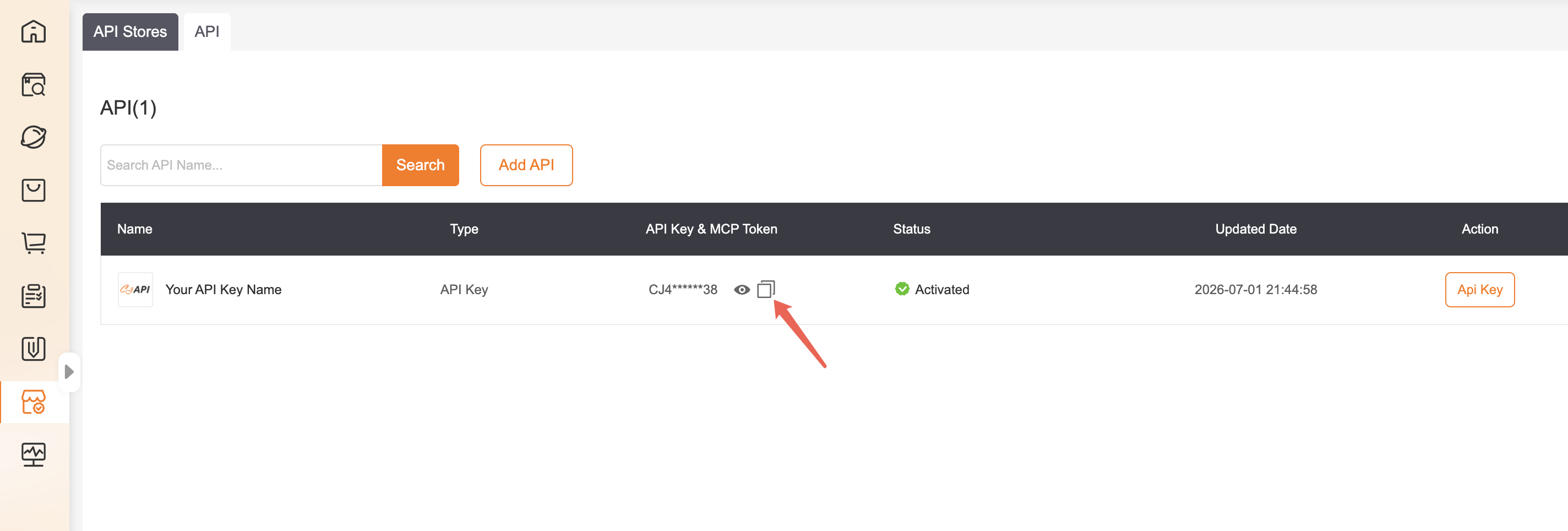
Figure 5: The API list. Columns: Name, Type, API Key & MCP Token, Status, Updated Date, Action. Locate the row whose Type is API Key (Status Activated); the token is masked (e.g.
CJ4******38). Click the Copy icon next to the eye icon in the API Key & MCP Token column to copy the full API Key.